After the one-time $2.99 App Store purchase for iPhone / iPad, you can redownload the app with the original purchasing Apple ID without paying again for the same purchase. Mac, Windows, Android and Linux versions are free; download the appropriate installer again on your new device. Before restoring, confirm which account was used to purchase the app on the old device.
On iPhone / iPad, go to App Store → Account → Purchased, find Shadowrocket and tap to redownload. Some system versions show an Apps or My Apps entry first, then the purchased list. Follow the entry shown on your device. If the product page still shows a price, stop before confirming the purchase and check your account and purchase history.
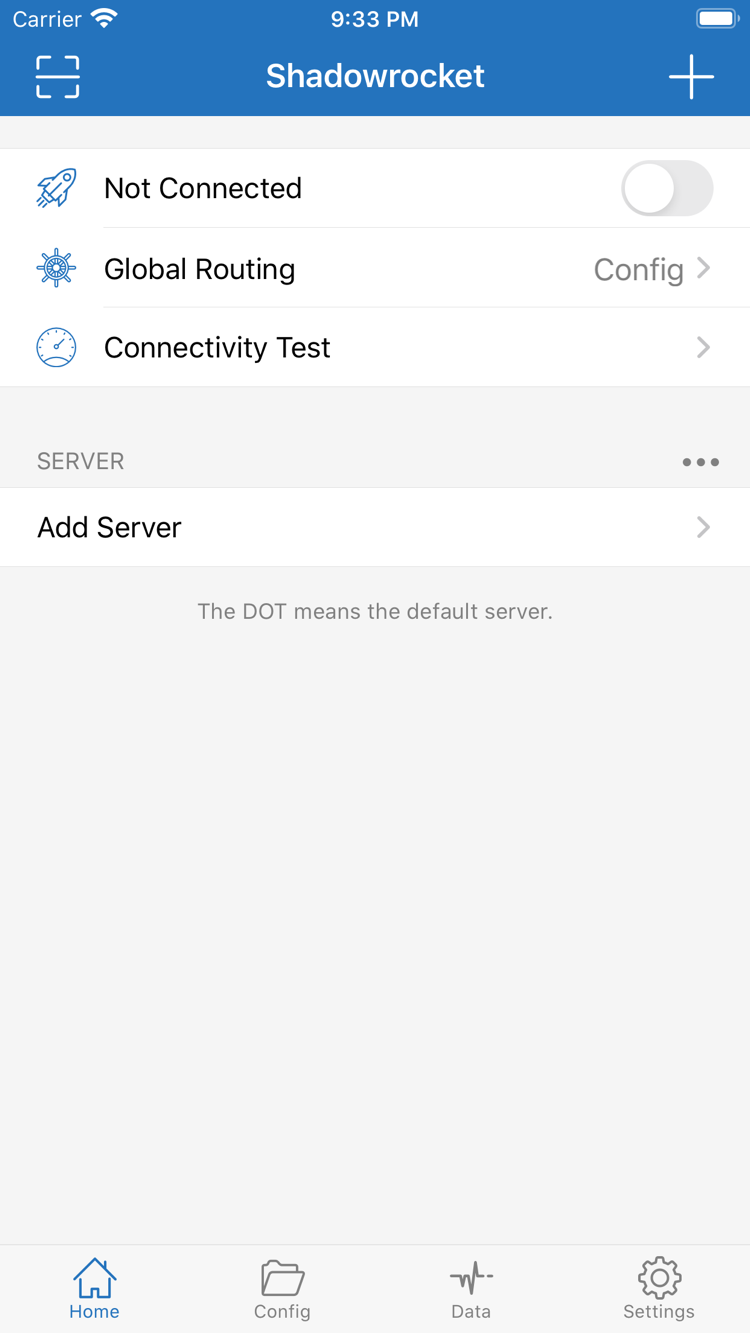
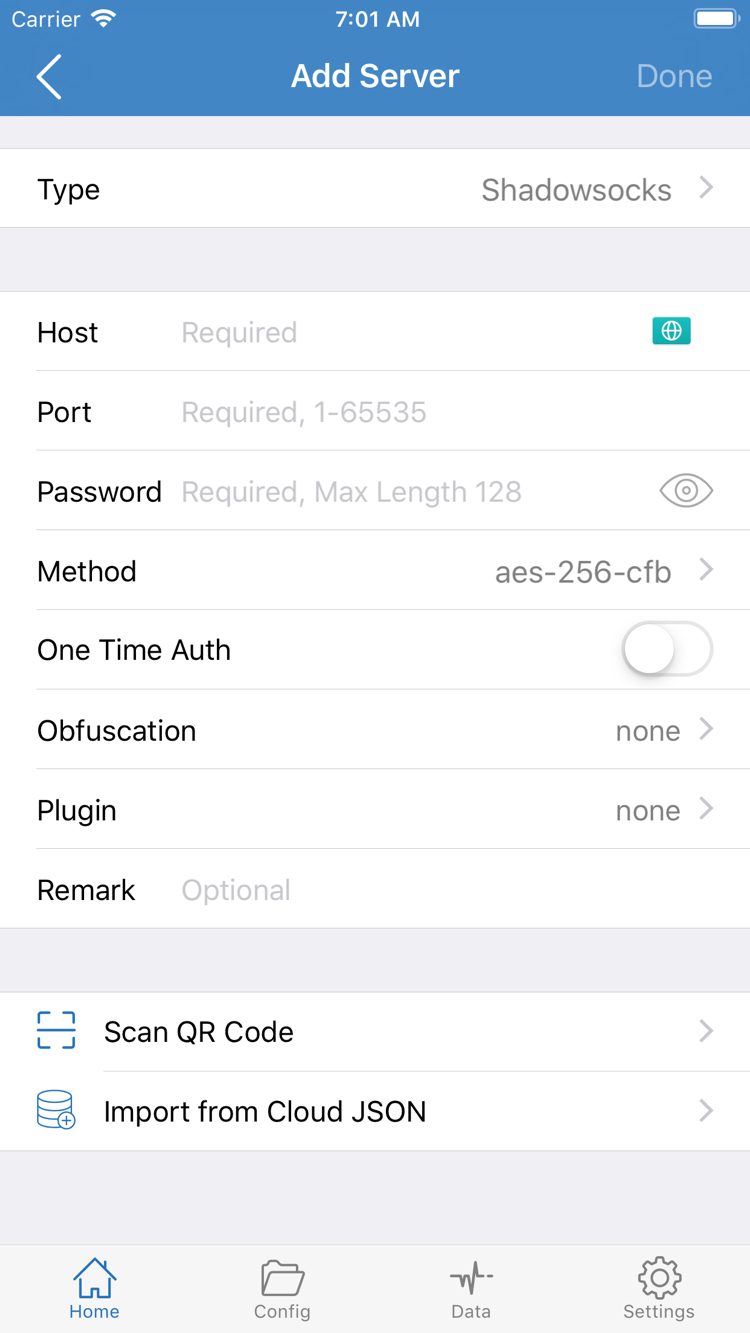
iPhone and iPad share a single purchase when using the same Apple ID, but this does not mean the in-app server list will automatically appear on a new device. After installation, import your own subscription or server details, then check Config, Global Routing and other settings as needed. If the old device is still available, record any required configuration choices first. Reinstalling is not a configuration backup.
When moving to a new computer or Android device, check the new device's architecture instead of reusing the old installer. In particular, if you are moving from an Intel Mac to an Apple silicon Mac, choose the matching version again. On Linux, check both the distribution's package format and the processor architecture. After importing configuration, check the server details before testing the connection.
Keep a record of your configuration before updating
Update the iPhone / iPad app through the App Store. For Mac, Windows, Android and Linux, return to this page for the current installer. Before updating, keep a record of your own subscription address, server details and configuration backup. Do not post credentials publicly. App updates and subscription updates are separate: installing a new app version does not replace checking whether an existing subscription is valid.